Fix: OpenClaw Disconnected (1008) – Pairing Required (Complete Guide)
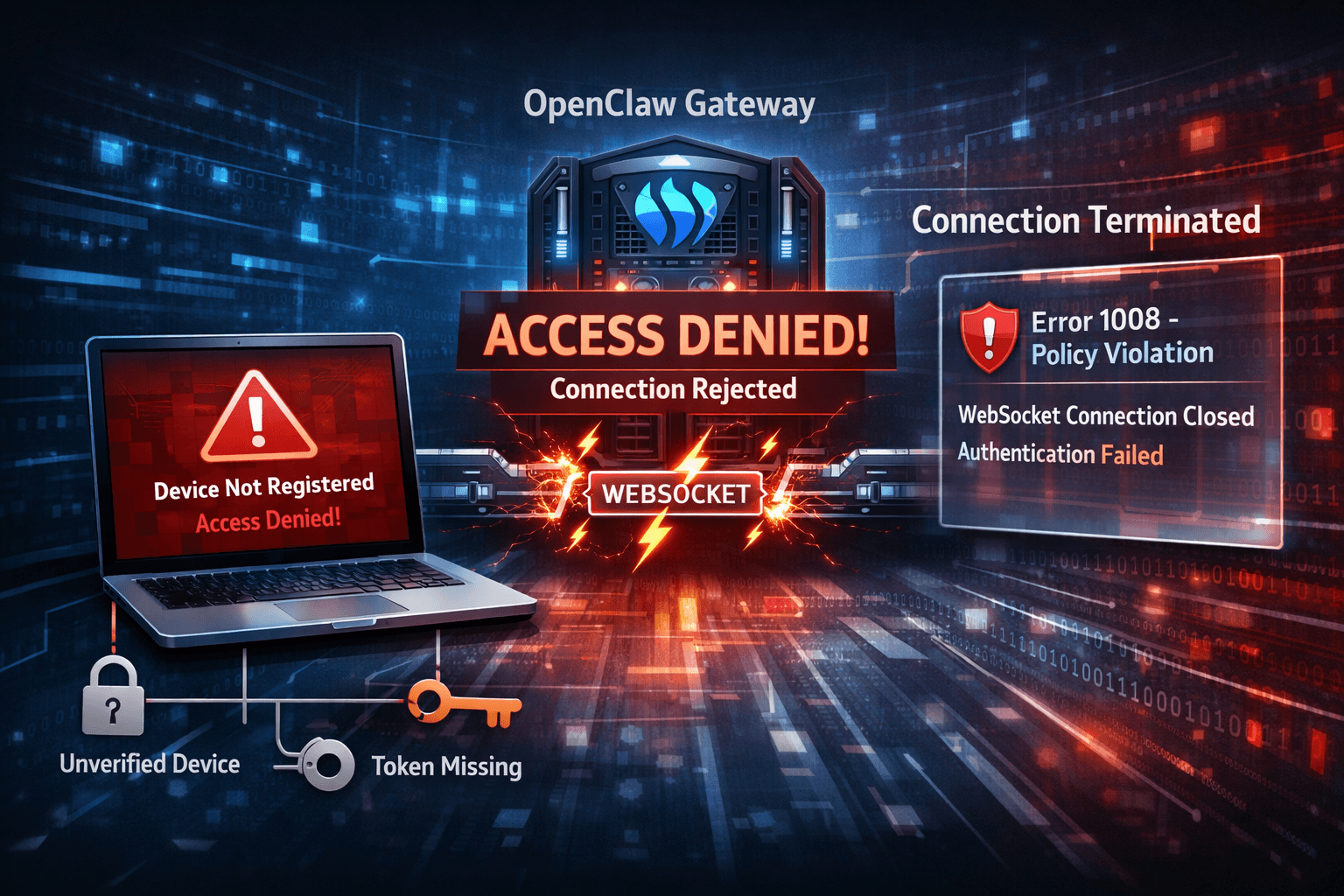
Table of Contents
- Introduction
- What Does OpenClaw Error 1008 Mean?
- Common Causes of the Pairing Required Error
- 1. Device Not Approved
- 2. Gateway Token Missing
- 3. Docker Networking Issues
- 4. Incorrect Gateway Configuration
- Step-by-Step Fix for OpenClaw Disconnected (1008)
- Step 1 — Check Pending Device Requests
- Step 2 — Approve the Device
- Step 3 — Restart the Gateway
- Fix for Docker Installations
- Fix Gateway Token Errors
- Additional Troubleshooting Checklist
- Preventing Future OpenClaw Pairing Errors
- Official Documentation
- Conclusion
- Recommended Reading
Introduction
If you are running OpenClaw locally and see the error:
disconnected (1008): pairing required
or
device identity required
gateway connect failed
you are not alone. This is one of the most common OpenClaw gateway errors, especially when running the system locally or inside Docker.
The issue happens when the OpenClaw gateway rejects the connection because the device or browser extension has not been approved in the system’s pairing security mechanism.
In this guide, you will learn:
- What OpenClaw error 1008 means
- Why pairing required errors occur
- Step-by-step fixes for device identity errors
- Solutions for Docker networking problems
If you're exploring how to run AI agents directly on your machine, especially with Anthropic’s computer use capabilities, understanding the full setup process is crucial. From configuring Docker environments to managing secure API interactions, running these models locally requires a clear grasp of both infrastructure and agent workflows. Our in-depth guide on running Anthropic computer use locally in 2026 walks you through everything step-by-step, including environment setup, agent loop architecture, and best practices for building autonomous desktop workflows.
What Does OpenClaw Error 1008 Mean?
Error 1008 is a WebSocket close code indicating a policy violation or authentication failure.
In OpenClaw specifically, it usually means:
- the device has not been approved
- the gateway token is missing
- authentication failed
- the browser identity is not recognized
OpenClaw uses a device pairing system to prevent unauthorized access to the gateway, so every new device must be approved before connecting.
When a device tries to connect without approval, the gateway immediately closes the WebSocket connection and shows:
disconnected (1008): pairing required
Running OpenClaw on a VPS allows developers to deploy AI automation workflows that run 24/7 without relying on a local machine. By hosting OpenClaw on a server, you can create reliable AI agents, connect APIs, and automate complex tasks while maintaining better performance and uptime. Setting up OpenClaw on a VPS typically involves installing Node.js, configuring dependencies, and running the service using a process manager for continuous operation. If you want a complete step-by-step tutorial, check out this guide: How to Run OpenClaw on VPS (Complete Setup Guide) .
Common Causes of the Pairing Required Error
1. Device Not Approved
OpenClaw requires manual approval for new devices.
If the device is pending approval, the gateway rejects the connection.
2. Gateway Token Missing
Sometimes the error appears as:
unauthorized: gateway token missing
This happens when the authentication token is not configured or mismatched between services.
3. Docker Networking Issues
When running OpenClaw inside Docker, the browser may connect through a different IP address.
This can prevent the pairing flow from completing successfully.
4. Incorrect Gateway Configuration
Wrong host, port, or gateway configuration may trigger errors like:
gateway connect failed
device identity required
These errors indicate that authentication or connection settings are incorrect.
Step-by-Step Fix for OpenClaw Disconnected (1008)
Step 1 — Check Pending Device Requests
Run the following command:
openclaw devices listYou should see something like:
Pending:
- id: abc123
  browser: Chrome
  requested: 2 minutes ago
This means a device is waiting for approval.
Step 2 — Approve the Device
Approve the device using its ID.
openclaw devices approve <device-id>Example:
openclaw devices approve abc123Once approved, the browser will be able to connect to the gateway. This is especially important when integrating with Claude code setup or external interfaces.
Step 3 — Restart the Gateway
Restart the gateway service to apply changes.
openclaw gateway restartThis reloads the configuration and reconnects the services.
Fix for Docker Installations
Docker setups often cause pairing errors because of networking restrictions.
If you installed OpenClaw with Docker, run commands inside the container.
Example:
docker compose exec openclaw-gateway node dist/index.js devices listThen approve the device.
docker compose exec openclaw-gateway node dist/index.js devices approve <DEVICE_ID>This allows the gateway to verify the device identity inside the container environment.
Fix Gateway Token Errors
If the error mentions token mismatch, set the gateway token manually.
openclaw config set gateway.token <token>Then restart the gateway.
openclaw gateway restartToken mismatches often happen after configuration changes or gateway restarts.
Additional Troubleshooting Checklist
If the problem persists, check the following:
- ✔ restart OpenClaw services
- ✔ verify gateway port configuration
- ✔ access the dashboard via localhost
- ✔ ensure WebSockets are enabled
- ✔ check browser console for errors
- ✔ confirm Docker network settings
These checks resolve most OpenClaw gateway connection errors.
Preventing Future OpenClaw Pairing Errors
To avoid this issue in the future:
- approve trusted devices immediately
- maintain consistent gateway tokens
- use localhost for local development
- restart gateway after configuration changes
- regularly check OpenClaw logs
These practices ensure a stable OpenClaw environment.
Official Documentation
You can learn more about device authentication in the official documentation:
https://docs.openclaw.ai/gateway/pairing
Conclusion
The OpenClaw disconnected (1008) pairing required error usually occurs when a device tries to connect without authorization.
Fortunately, the fix is simple:
- check pending devices
- approve the device
- restart the gateway
If you are using Docker, run commands inside the container to approve the device.
Once pairing is completed, OpenClaw should reconnect normally.
Recommended Reading
You may also like: